
Product Engineering - Engineering Change Management
Engineering Change Management introduction
Engineering Change Management for Dynamics 365 Business Central supports the process of requesting, planning, and implementing changes to products. Its main goals are to support the processing and traceability of changes from the perspective of an ERP system. The functionality achieves this by structuring the communication around changes between operations and engineering.
Engineering Change Management has the following business goals:
- Leaner process: by using lifecycles and workflows, the process is automated with built-in checks to avoid "black boxes." Conditions and action handlers in the lifecycle do the heavy lifting to ensure data consistency.
- Reduce cycle time: by sending engineering change requests (ECRs) to engineering and receiving replies on these ECRs, updates can be processed immediately as pre-approved.
- Eliminate errors: the lifecycle conditions validate each step for completeness of data. Automating the exporting and importing of data avoids re-typing and reduces typing errors.
- Improve communication: automating the process with automatic notifications makes the process paper-free while improving communication.
 To achieve these goals, carefully design the Engineering Change process with the customer. STAEDEAN ECM offers the components to implement such a process in Dynamics 365 Business Central.
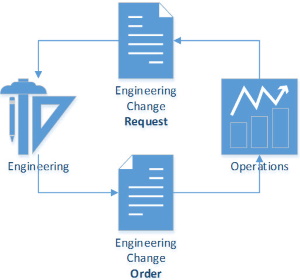
The importance of a well-structured process lies in the fact that every idea around a product has the potential to improve that product and make it a better fit for customers. Whenever the product is discussed in operations (when taking a sales order, when the product is serviced or repaired, when purchasing from a vendor, used in a project, when manufacturing, or just as a new idea), record that idea for later evaluation.
In a structured system, patterns become visible showing similar requests for the same item. Based on these patterns, Product Engineering can set priorities. Within ERP, evaluate the impact of a change by reporting the value of inventory, purchases, and customer commitments through sales orders and projects. Based on this information, make a well-informed decision to approve or reject a request. Approval means an assignment for the engineering department. When engineering uses a Product Lifecycle Management system, submit ECRs electronically.
Implementing engineering changes must also be a structured and efficient process. Identify the changes quickly and implement the product changes properly, making the effects on bills of material and routings visible. With detailed information on the changes, inform the product's stakeholders in the organization (such as vendors and customers) to act accordingly.
Engineering Change Requests (ECR)
Create an ECR with the help of a wizard from several source documents, or directly as just a new idea. Once created, complete the ECR with comments, documents, and pictures.
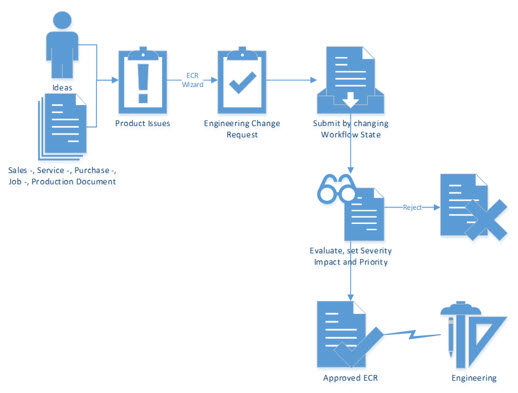
The ECR is supported by a document approval workflow that you can install from a workflow template. When approved, the status of the ECR changes to Processed. This status triggers a change log event in a Connectivity Studio pipeline to export the ECR to engineering. The combination of severity and impact determines the priority for the ECR. For example, a Critical severity combined with a High impact requires immediate attention from management and engineering.
Engineering Change Order (ECO)
Create the ECO to install the change in the database. Receive updates from engineering as a file in the ECO staging table, where you can review them. The staging table distinguishes between items, bills of material, and routings. The import validates the received information and marks the records as New, Updated, and Substituted.
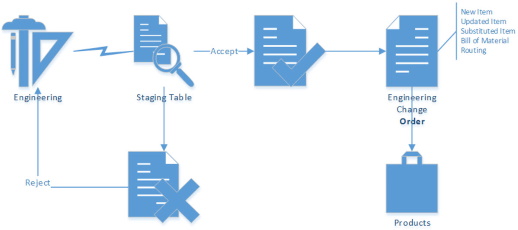
Based on information in the staging table fact box, either accept or reject the record. Records in the staging table are created through import and removed through accepting or rejecting: you cannot delete them directly.
Create an ECO from an accepted record in the staging table. Registering the ECO installs the change:
- New: a new item, bill of material, or routing is created.
- Update: an existing item, bill of material, or routing is updated. You can compare the existing and the new record before registering the ECO.
- Substitute: a record is created in the item substitution table. When substituted with a new item, create the new item first. A new version of a BOM or routing is created.
Once registered, the ECO is archived. The actual implementation of the change (such as updating purchase orders with vendors) is handled by the ECO. Optionally, confirm the installation or rejection of a change back to engineering.
Batch process to set initial revision
From the Role Center, select Actions > Manage to access a batch process. Use this batch process to set the Revision No., description, and effective date for items, production BOMs, routings, and production components. In the filters, select an item or a range of items. Optionally attach a document to link in the item's Attachment fact box.
A Revision No. is only visible on or after the effective date.
From the Item card, select Action > Revision Codes to show a list of revision codes. The same applies to production BOMs and routings.
Connector
Create connectors for Engineering Change Management with STAEDEAN Business Integration Solutions (BIS) Connectivity Studio (CS). With CS, create, maintain, and manage a connector from the Business Central user interface. Connectors can be bi-directional and asynchronous based on an exchange of XML files, or synchronous based on web services in either a pull or push scenario. For more information, see Design Detail.
Engineering Change Notification (ECN)
To inform users about engineering changes, the following information is available:
Item Details ECR fact box
Available on the Item card, it shows:
The current Revision Code of the item.
A Revision Code is only shown on or after the effective date.The pending engineering change requests per status.
The engineering revisions (ECO), which contain the history of the implemented changes.
Production BOM Details ECR fact box
Available on the Production BOM card, it shows the same information as the Item Details ECR fact box.
Notes
When an ECR is created from a source document (such as a service order), a note is attached to that service order when the ECR is completed by an engineering change order (ECO). These notes appear on the following pages based on the source type in the ECR:
| ECR source type | Page |
|---|---|
| Sales | Sales Order |
| Purchase | Purchase Order |
| Service | Service Order |
| Project | Project card |
| Production Order | Production Order |
| Idea | Engineering Change Request |
| Quality | Registered Measurement (Only when ECM is installed in combination with QM. Request the page extension from STAEDEAN.) |
| Assembly | Assembly Order |
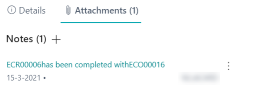 This note informs the user that ECR00006 has been completed with ECO00016.
Notifications
When New Revision Available is set in My Notifications, a notification appears in the source document when a newer revision of the item exists at the specified date. These notifications are set for the following entities based on the dates indicated:
| Entity | Date |
|---|---|
| Sales Order Line | Planned Shipment Date |
| Purchase Order Line | Planned Receipt Date |
| Service Order Line | Planned Delivery Date |
| Job Planning Line | Planning Date |
| Production Order | Due Date |
| Assembly Order | Due Date |
Below is a Sales Order example:
| Document | Date | Revision |
|---|---|---|
| 01-03-2021. Archived Engineering Change Order | Effective date: 01-03-2021 | A |
| 05-03-2021. Sales Order | Planned shipment date: 15-03-2021 | A |
| 10-03-2021. Archived Engineering Change Order | Effective date: 10-03-2021 | B |
 In this scenario, the notification appears when the sales order is opened after 10-03-2021. Use the Update action to update the source document to the new revision code.
See also
Tasks
- How To : Setup Engineering Change Management
- How To : Setup ECM Connections
- How To : Create an Engineering Change Request
- How To : Process an Engineering Change Request
- How To : Submit an Engineering Change Request
- How To : Import files into the EC Staging Table
- Automated review of Engineering Change Orders
- How To : Manual Engineering Change Order
- How To : Process an Engineering Change Order
- How To : Archived ECO and Confirmation
Reference