STAEDEAN Business Central documentation
Publishing a cloud app
Apps that are published to the cloud but cannot be installed via App Source install via a publish request. Modify the URL of your Business Central environment and add the Publish URL querystring. This query opens page 2503, which gives the option to publish the app defined by its ID in the URL. For more information, see here.
Prerequisites
The user publishing the apps must have Install and Managing apps permissions.
Modifying the URL
Start from the URL you land on after logging in at businesscentral.dynamics.com. This URL may look like one of the following:
- https://businesscentral.dynamics.com/{AzureTenantID}/?company=CRONUS%20USA%2C%20Inc.&dc=0
- https://businesscentral.dynamics.com/{Environment}/?company=CRONUS%20USA%2C%20Inc.&dc=0
- https://businesscentral.dynamics.com/{AzureTenantID}/{Environment}/?company=CRONUS%20USA%2C%20Inc.&dc=0
Strip everything after the question mark [?] and replace it with the publish URL.
As an example for Connectivity Studio, change:
https://businesscentral.dynamics.com/{Environment}/?company=CRONUS%20USA%2C%20Inc.&dc=0
to:
As an example for Quality Management, change:
https://businesscentral.dynamics.com/{Environment}/?company=CRONUS%20USA%2C%20Inc.&dc=0
to:
 These are examples. Per app, you may need to publish several packages. For the latest URLs, go to the respective Installation and Update pages.
Navigate to the new URL to start the installation.
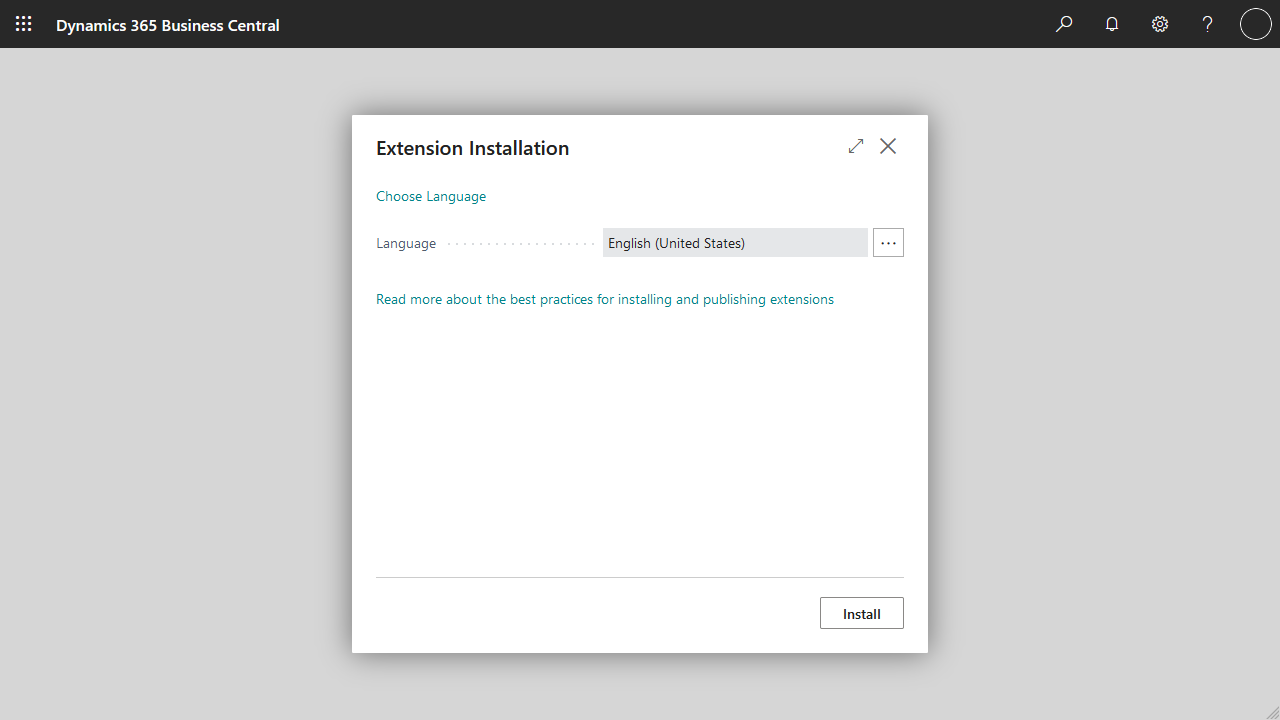
Page 2503 Extension Installation
When the previous step completes successfully, the following page appears. Select Install to begin the deployment.
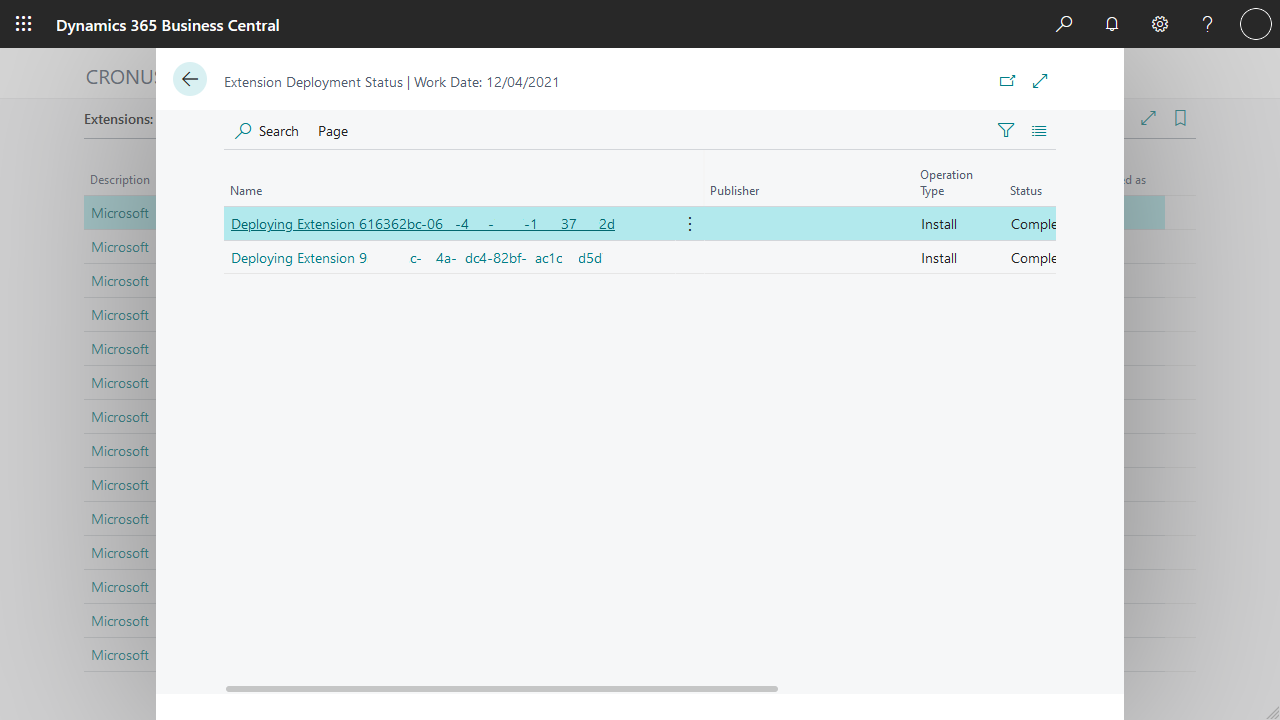
During installation, you can see the progress via Extension Management: Extension Deployment Status.