
Anywhere Mobility Studio Documentation
How to: Register a client secret for your app
To establish communication between your Microsoft Dynamics 365 Business Central environment and the Anywhere Portal app, define a client secret for the app registered in Microsoft Entra admin center.
Steps
In the Microsoft Entra admin center, open your app and select the Certificates & Secrets section.
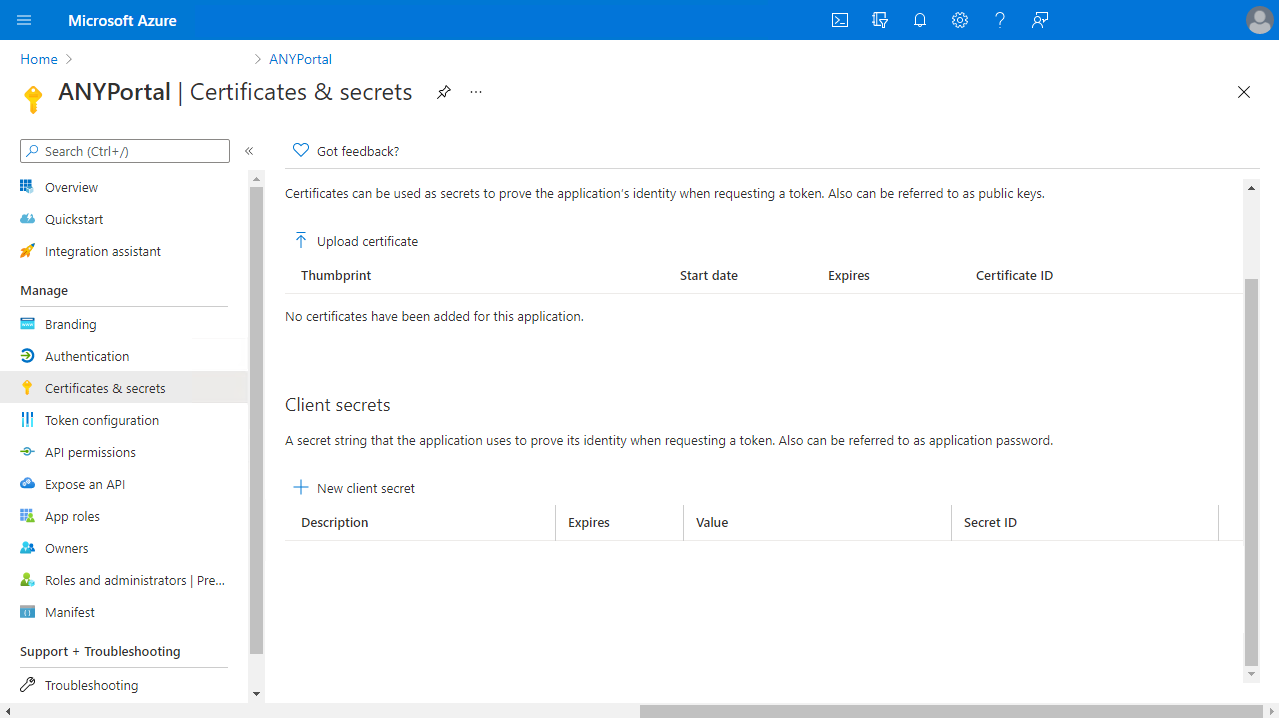
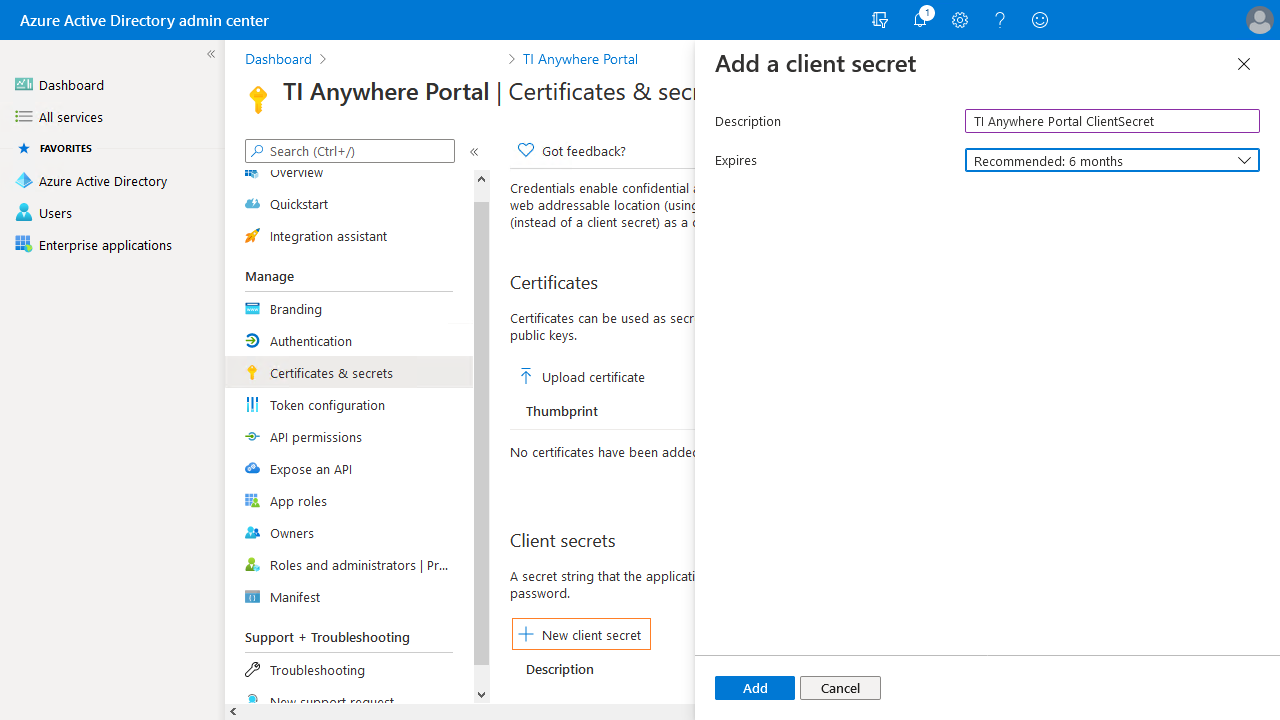
Select the New client secret action and choose a description and an expiration period.
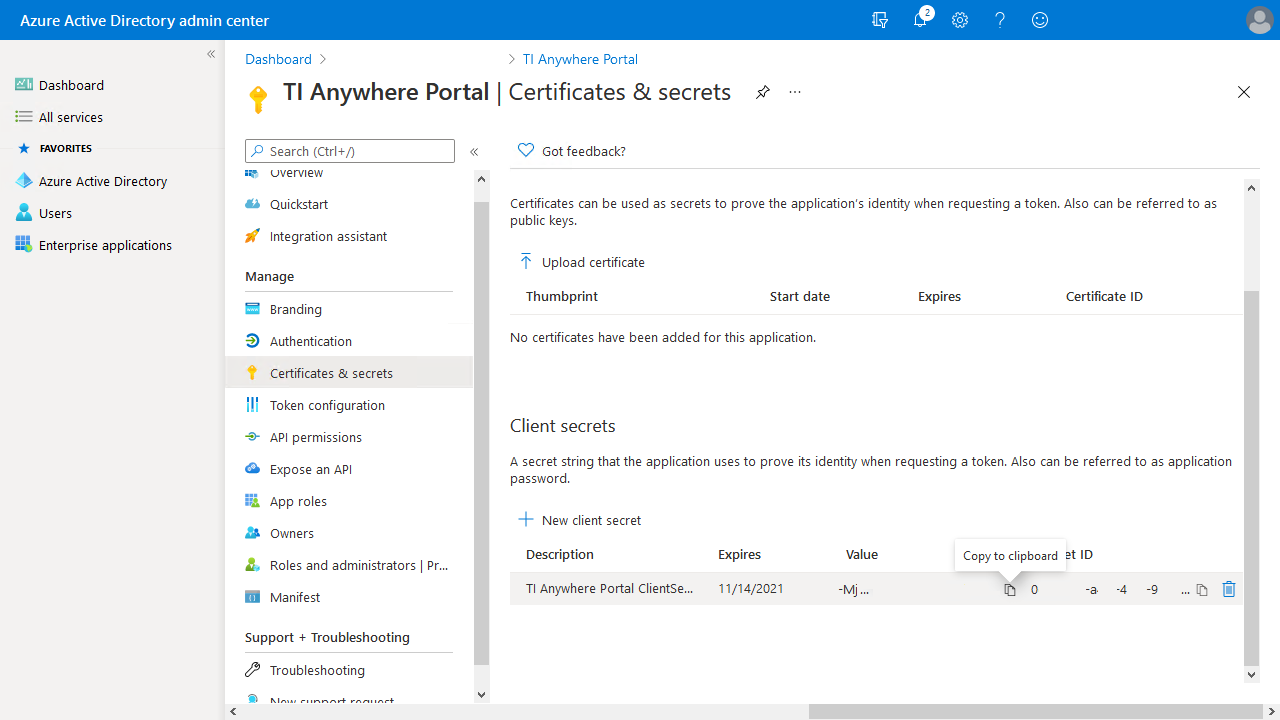
Save the secret value and store it in a secure location. Use it together with the client ID to get an AD token for API calls.
 Registering the Anywhere portal as an app in Microsoft Entra admin center is based on Microsoft docs.
Granting the Azure app rights is based on Microsoft docs.