Business Integration Solutions documentation
How to: Set up label printing connections
To connect to the label printing software, import the provided connections. These connections retrieve the label templates and available printers.
Import the Label Printing connections via: Departments > Solution Center > Label Printing > Label Printing Connections
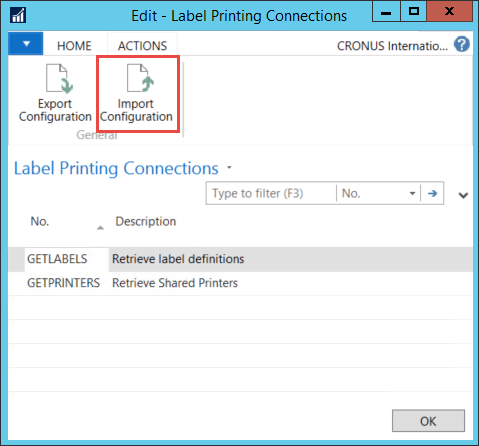
The following connections are available for label printing. Import them from the following folder in the software package: NAVBIS\Configuration Packages\Label Printing
| Connection | Description |
|---|---|
| Label Printing Connection-GETLABELS.zip | Fetches the list of labels based on the selected label printing software and populates the Print Labels table with the list. |
| Label Printing Connection-GETPRINTERS.zip | Fetches the list of printers configured with the label printing software and populates the Label Printers table with the list. |
Label printers using Automation Interface setup
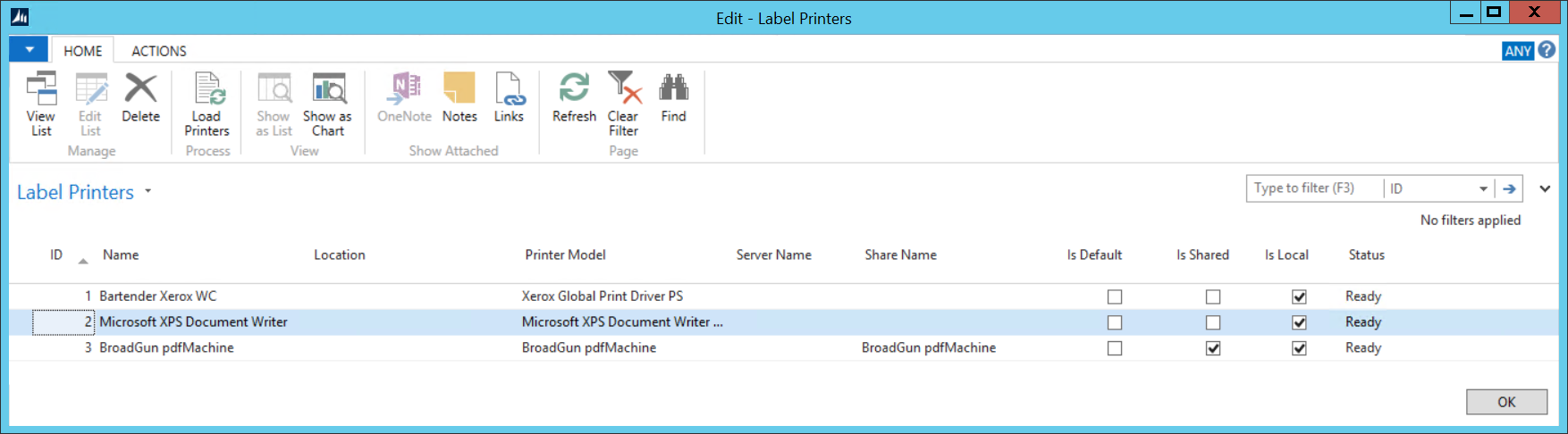
Retrieve available printers on the server by opening the Label Printers page: Departments > Solution Center > Label Printing > Label Printers
Select Load Printers from the ribbon. This processes the GETPRINTERS connection and populates the N108 Label Printing Printer table with the installed label printers.
Label printers using drop-file setup
Enter available printers manually on the Label Printers page. Copy the printer name and paste it into the Name field.
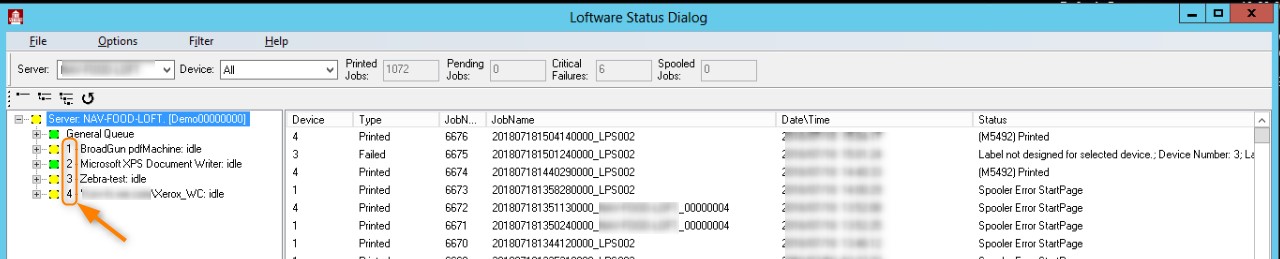
 When setting up printers for Loftware, the numbers must match the printer name on the Label Printers page in NAV.