Business Integration Solutions documentation
How to: Set up label printing
To work with the label printing activity, perform the Label Printing setup.
To set up label printing:
- Go to Departments > Solution Center > Label Printing.
- Select Label Printing Setup under Administration.
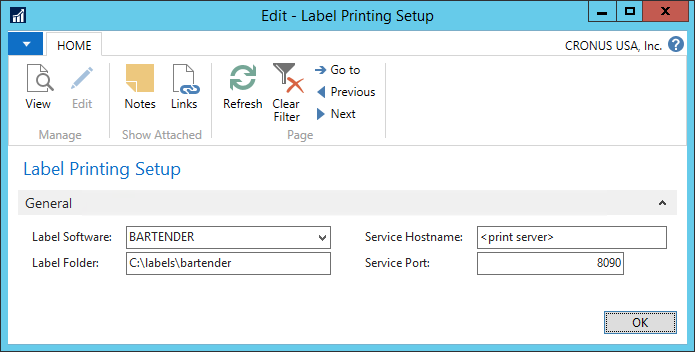
- On the Label Printing Setup page, fill in the following fields:
| Field | Description |
|---|---|
| Label Software | Select which printing software is in use. |
| Label Folder | The folder where all labels are stored. This is the folder on the label printing server. Do not use a network share with Loftware: use a direct reference to the folder. |
| Service Hostname | The server where the TI.Labelprinting Service runs. |
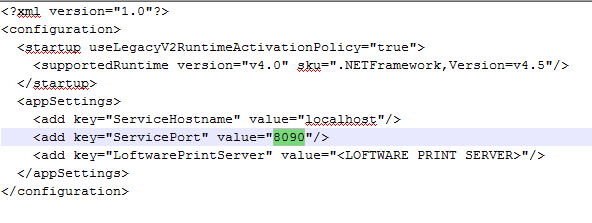
| Service Port | The port on which the TI-Labelprinting Service runs. The default is 8090. You can also change the port number. |
To change the default label printing service port:
This applies only to an Automation Interface setup, not a drop-file setup.
Open Component Service Manager (
services.msc).Stop the STAEDEAN Label Printing Service.
Open the folder where the service is installed, typically:
C:\Program Files (x86)\To-Increase\Label Printing ServiceOpen
TI.LabelPrinting.Service.exe.configin edit mode.Modify the value in ServicePort.