
Business Integration Solutions documentation
How to: Install the label printing service
This step applies only to Automation Interface connections with Bartender or Loftware. When using the drop-file functionality, skip this step.
To configure label printers, first install the STAEDEAN label printing service. This installs a Windows service that acts as a communication layer between Microsoft Dynamics NAV and the label printing software.
 For performance reasons, install this service on the label-printing server.
To install the label printing service:
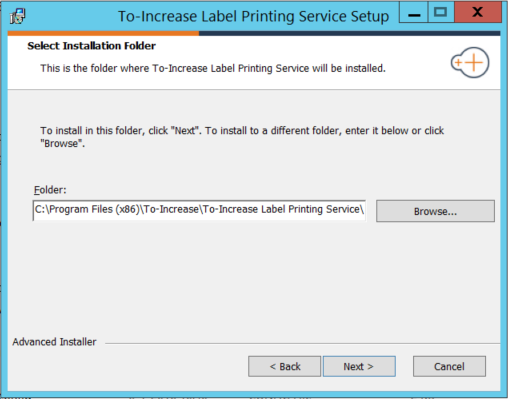
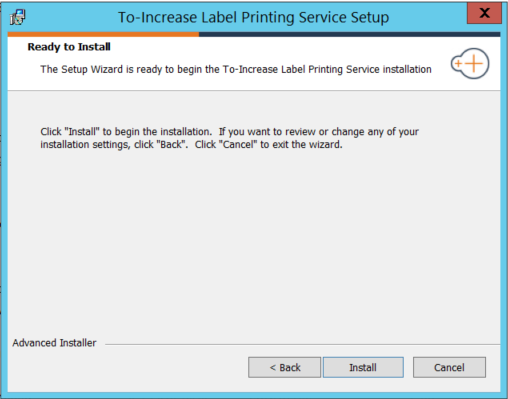
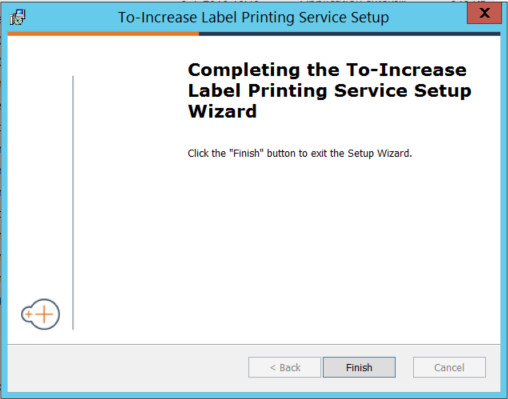
Run STAEDEAN Label Printing Service.exe from the software release package.
Follow the instructions on the screen.

To verify the installation:
Open Component Service Manager (
services.msc).Verify that a service named STAEDEAN Label Printing Service is available.
If the service is not running, start it.
