this folder, several times # ANY Process Demo: WMS Put-Away SP
Overall process flow
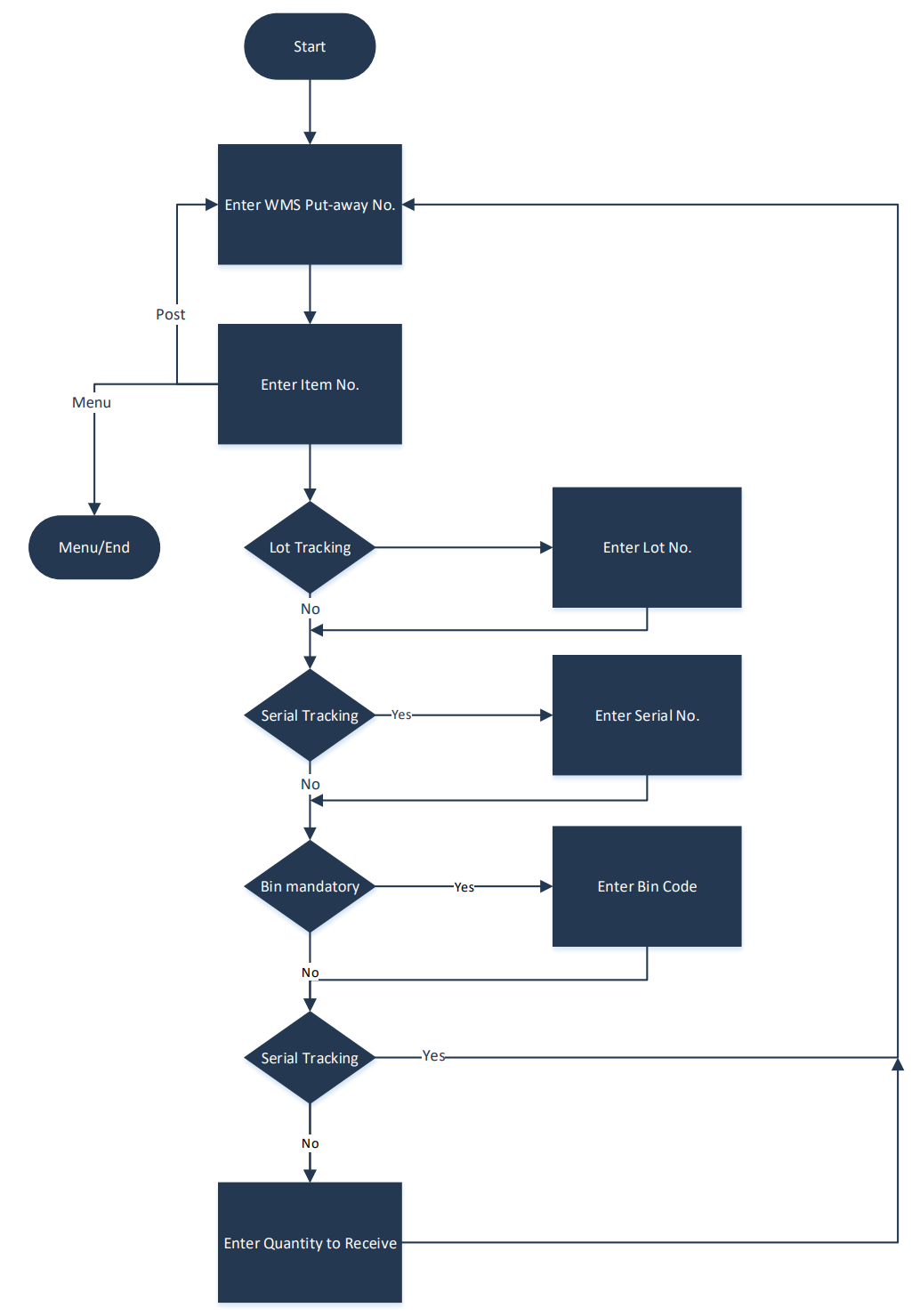
The WMS Put-Away SP process supports the put-away process in the warehouse based on a WMS Put-Away document generated in advance in Business Central from a Warehouse Receipt document.
Next, the sequential process goes through each item one by one automatically. Optionally, depending on the location setup, enter a bin based on the available bin inventory.
Next, enter the quantity to put away. The system adds this quantity to the already handled quantity and then compares it with the ordered quantity. If the quantity to put away plus the handled quantity plus the outstanding quantity exceeds the ordered quantity, an error message appears.
After you accept the input quantity, the system updates the put-away document line. When the quantity to put away plus the handled quantity is less than the outstanding quantity, the system splits the original put-away document line and creates an extra line with a quantity equal to the original outstanding quantity minus the quantity put away. Finally, the system registers the put-away document.
When Warehouse Receipt lot numbers are registered, the system processes the lot number all the way through the put-away process. So, this pre-configured process supports processing put-aways with lot numbers.
Steps
Make sure you have already set up the prerequisites for this process.
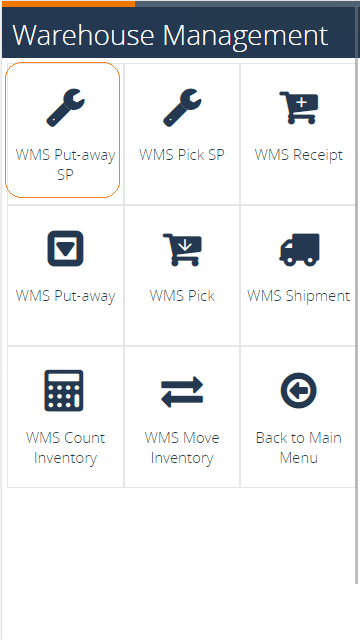
Select the Warehouse Management button in the menu, then select the WMS Put-Away SP button in the WMS Menu.
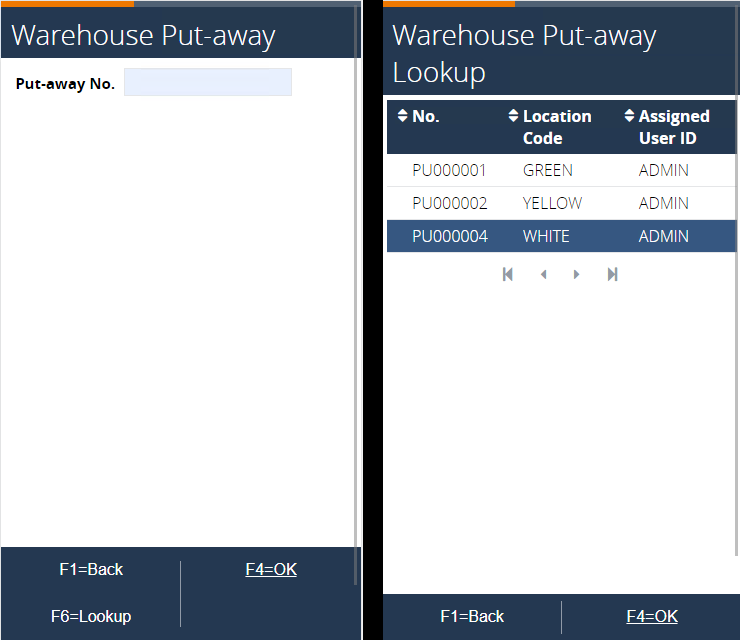
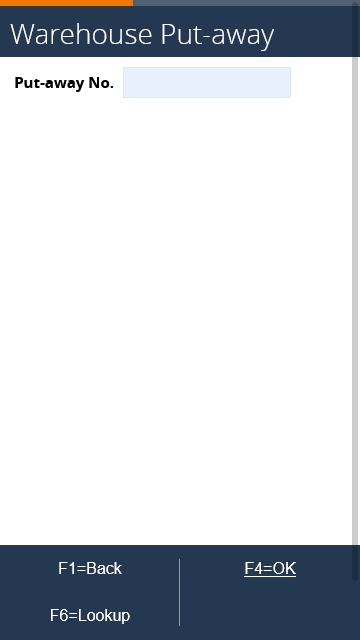
Scan or select the put-away document for the WHITE location from the list using the lookup.
In the next page, the sequential process selects a line that still needs to be processed. In this case, it selected one of the lines that is not tracked (serial or lot).
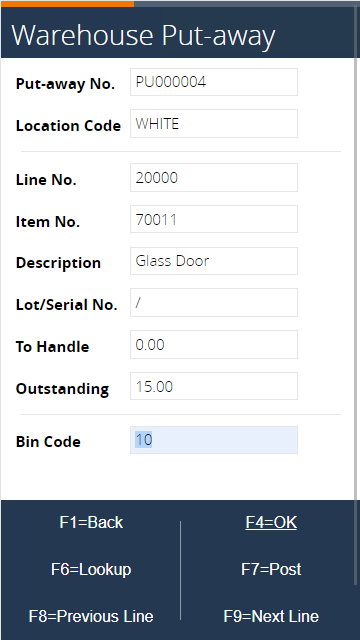
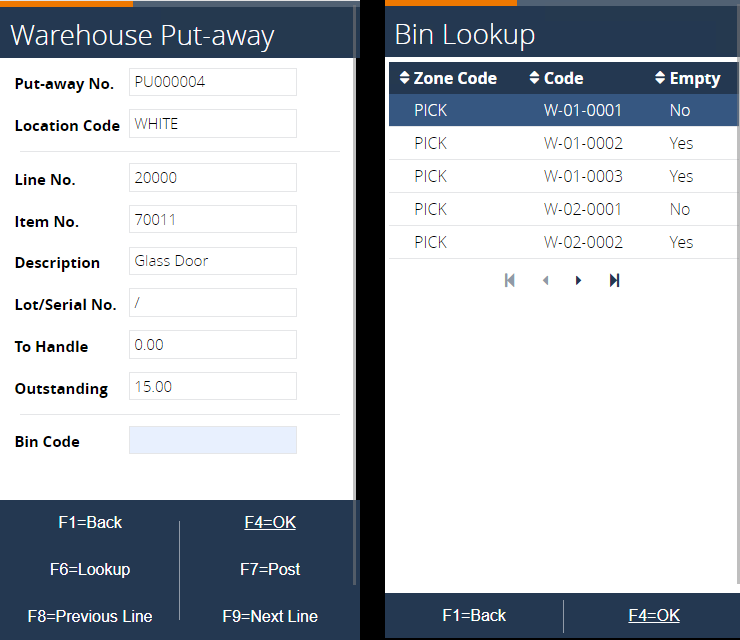
You must specify a bin code because it is mandatory for location WHITE. Enter a bin or use F6=Lookup to select one from the list. Note that only bins of the Bulk zone are allowed, the zone of the put-away line.
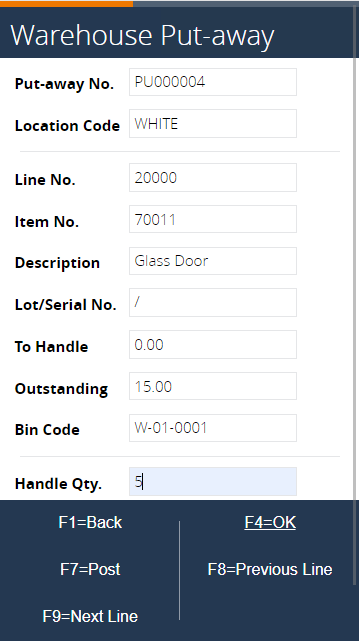
Enter the quantity to handle (for example, five) and press F4=OK.
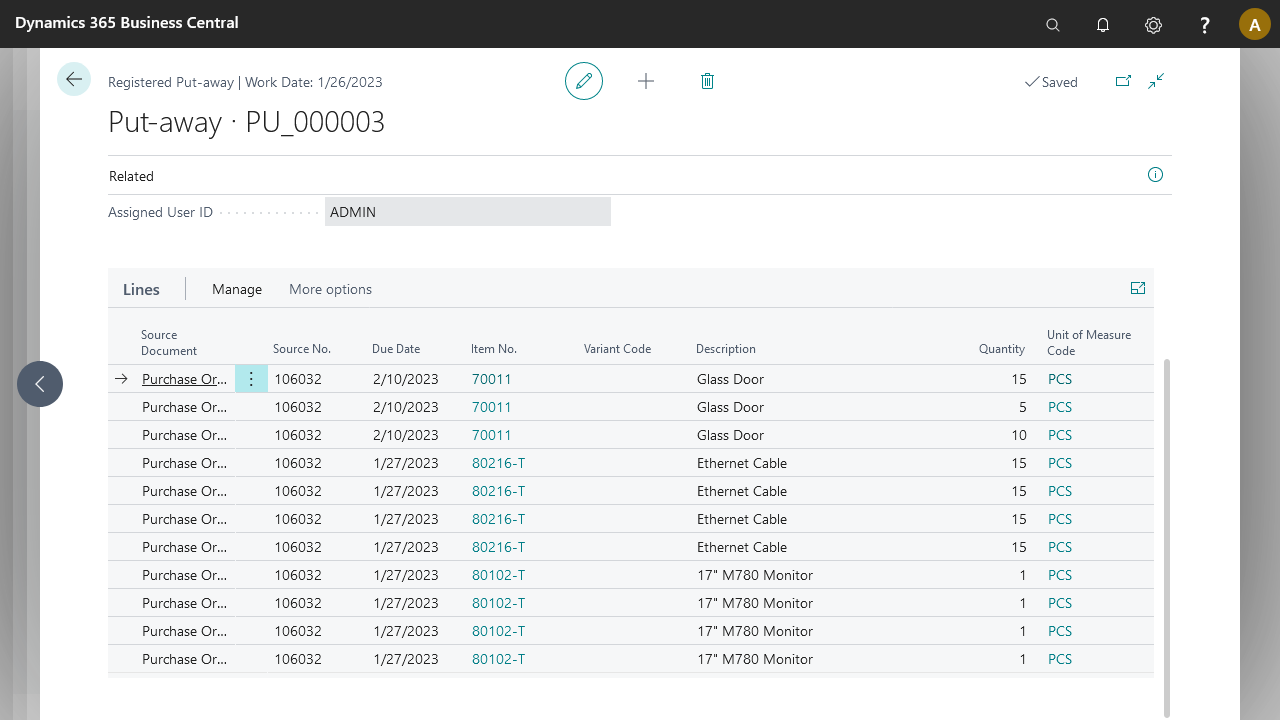
You can see the updated line for item 70011 in BC. Notice there are two Place lines for it.
 To see the result in BC, open your put-away document and see the two Place lines for item 70011.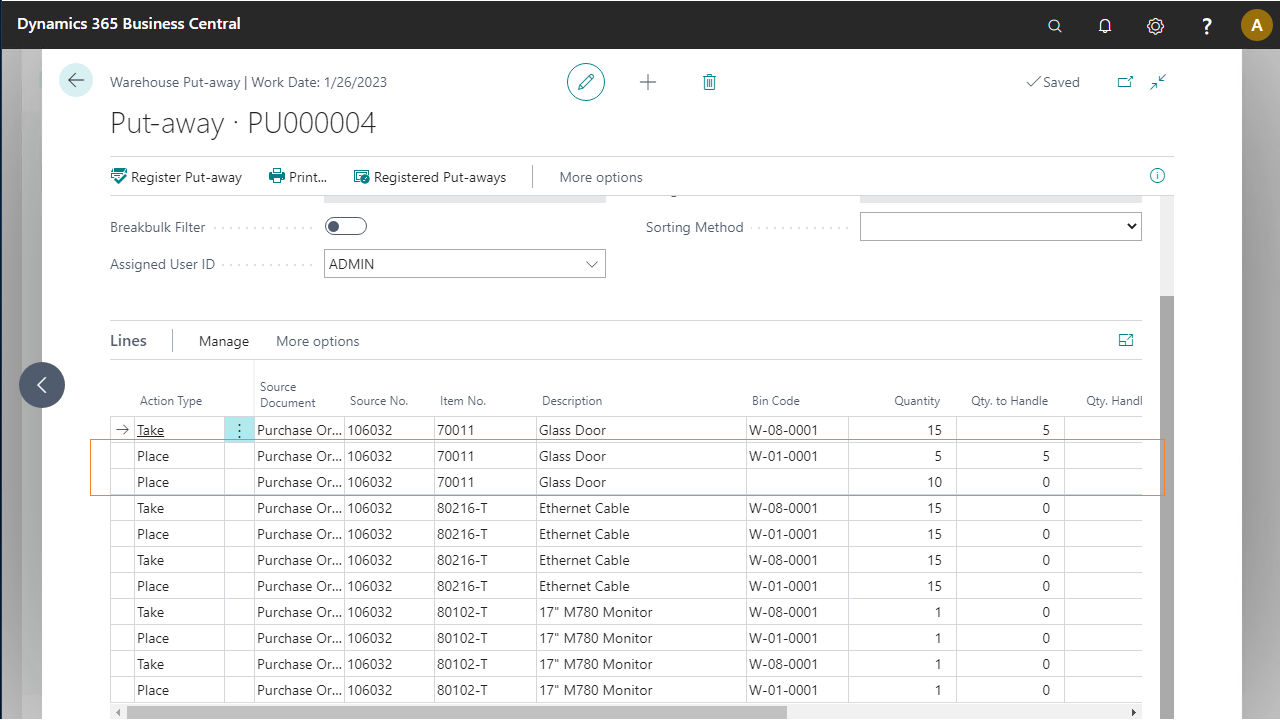
The system moves to the next line to handle. Because five were handled in the previous step, the remainder of item 70011 appears. Handle the remaining quantity. You can also use F8=Previous Line and F9=Next Line to move back and forth through the put-away lines.
Once item 70011 is fully handled, the process moves to the next item on the list, which is a serial tracked item 80102-T.
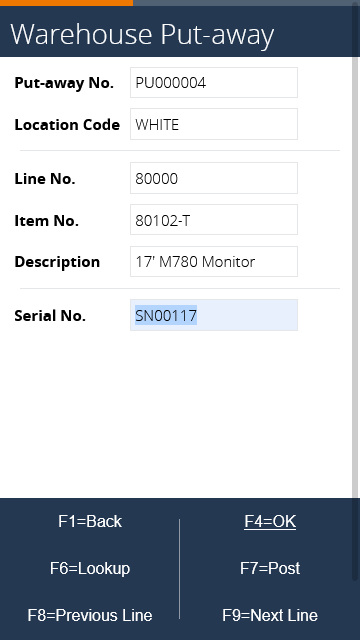
Because this is a serial tracked item, enter a serial number or use F6=Lookup to search for one.
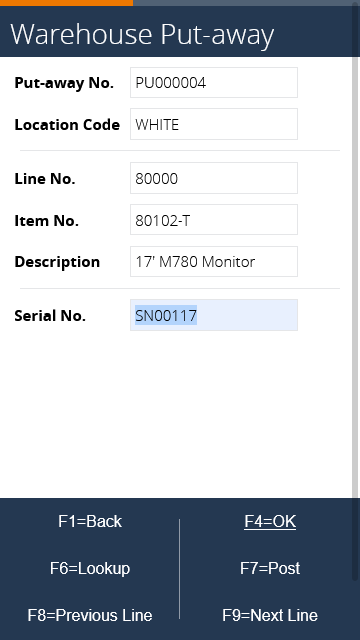
In the next step, enter a bin code because it is mandatory for location WHITE. Enter one manually or use F6=Lookup to search for one.
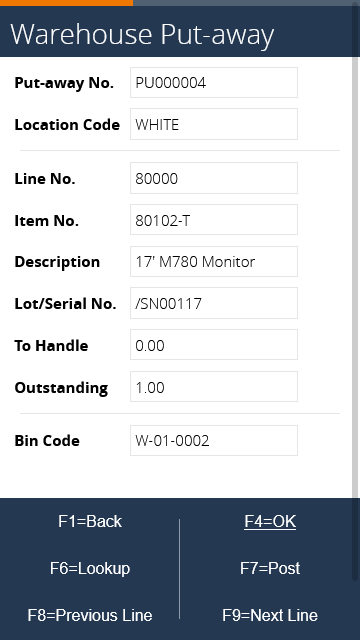
Because the item is serial tracked, no quantity to handle is needed. The system moves to the next line in the warehouse put-away. Handle all the serial tracked lines in the put-away until you get to item 80216-T, which is lot tracked.
To see the result in BC, go to your put-away and see that the quantity to handle is updated for item 80102-T.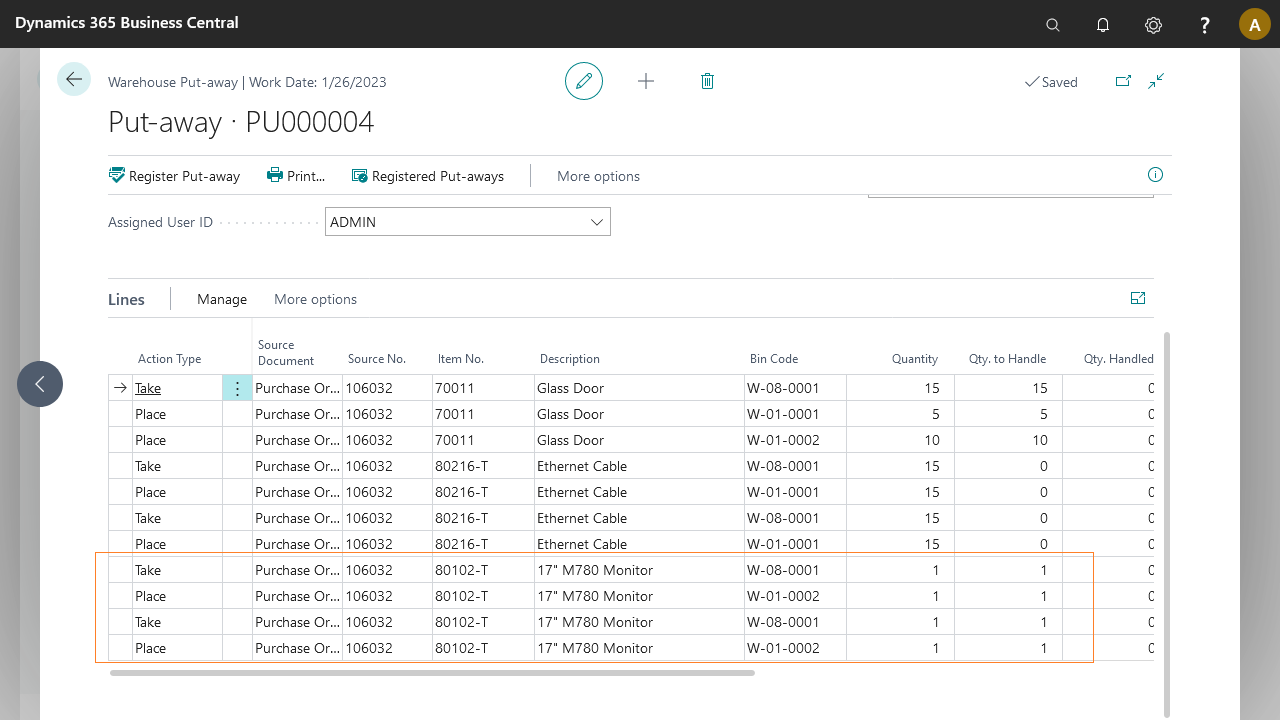
Once the process moves to item 80216-T, enter a lot number or use F6=Lookup to search for one.
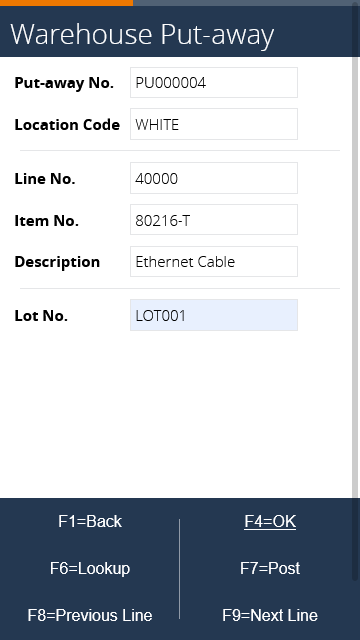
In the next page, enter a bin code or use F6=Lookup to search for one.
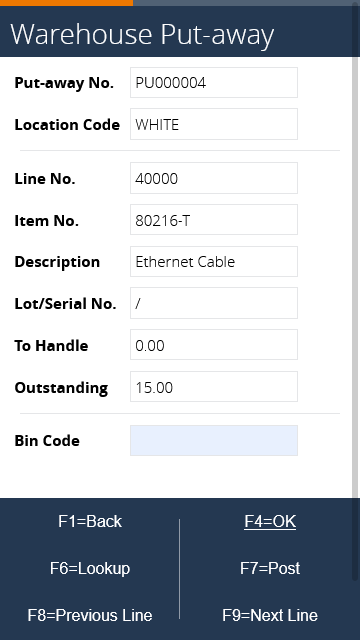
Enter a quantity to handle of 15 and press F4=OK.
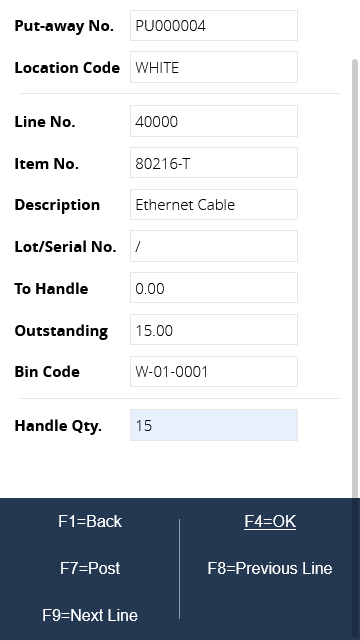
If there are no more lines to handle in the warehouse put-away, the process moves to the final page where you can either return to the main menu using F2 or post the put-away using F7.
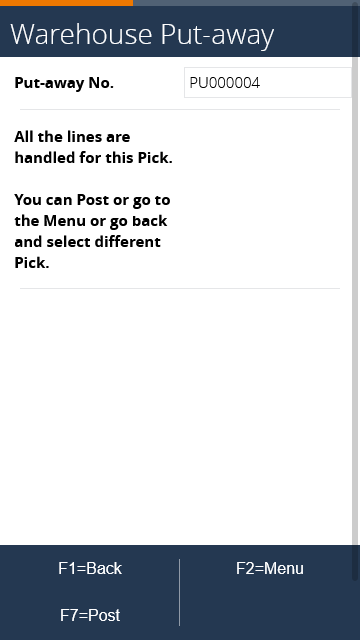
Once you post the put-away, the process returns to the initial page where you can select a different document to handle.
 To see the result in BC, go to Warehouse Put-away. You can see the posted warehouse put-away in the Registered Warehouse Put-Away List page.