
Azure Storage Account setup
This page describes how to set up a connection to Azure File Storage for BC BIS end users.
Steps
Set up an Azure storage account.
https://docs.microsoft.com/en-us/azure/storage/files/storage-how-to-create-premium-fileshare?tabs=azure-portal (if gone, use archive.org)
Choose an appropriate storage account name. After completing the storage account setup, go to the settings page of your storage account and note one of the access keys you want to use to connect.
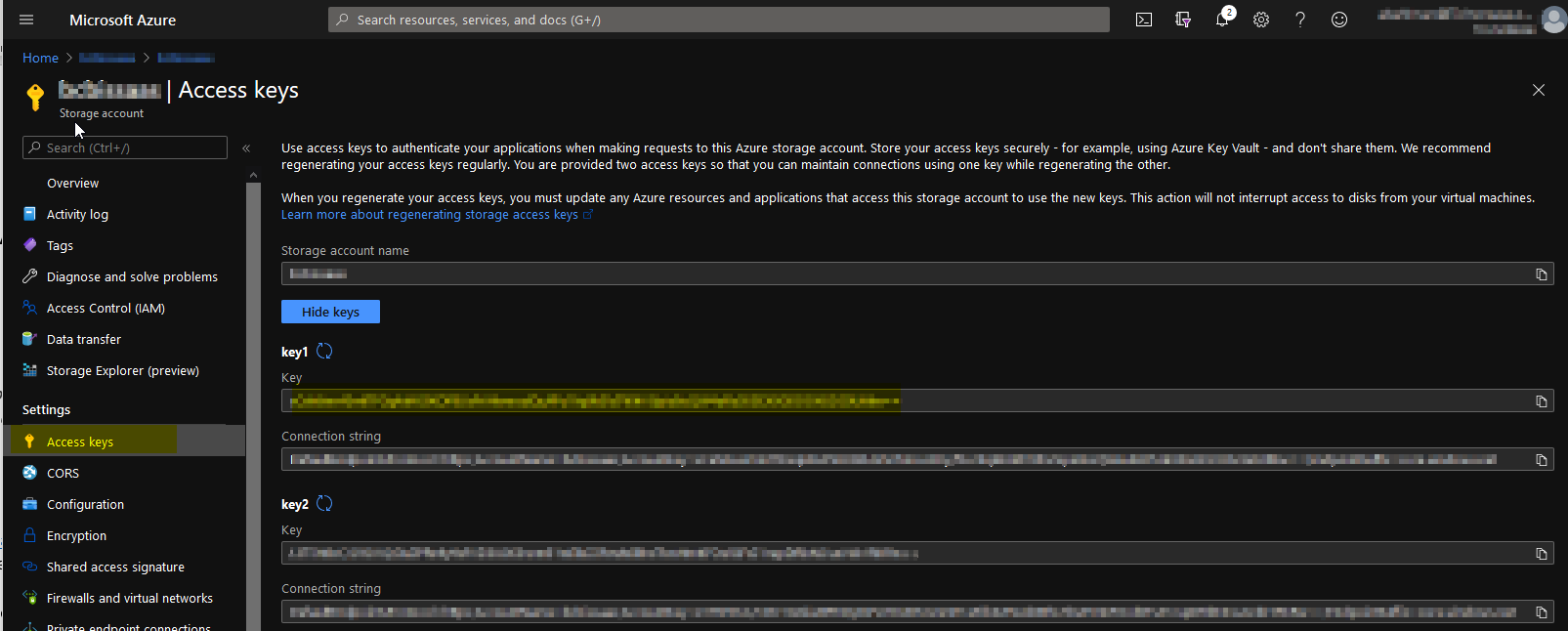
Both the storage account name and one of the access keys are needed to connect to the Azure storage.
Download Azure Storage Explorer from the Microsoft website (https://azure.microsoft.com/en-us/features/storage-explorer/). After installing and launching the storage explorer, right-click Storage accounts and choose Connect to Azure storage.

Make sure to connect via the account name/key combination.
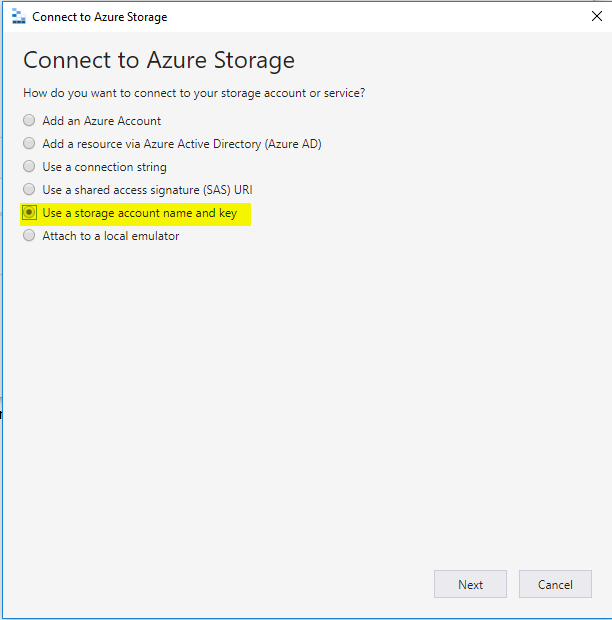
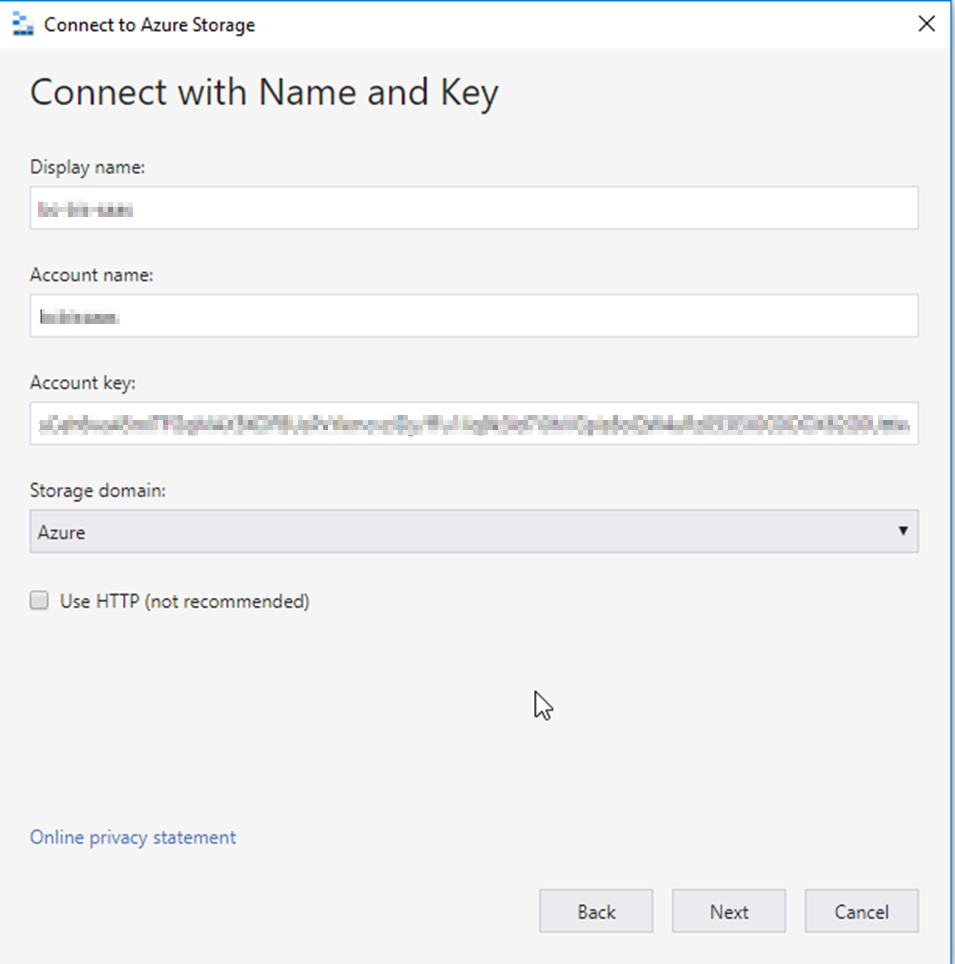
Use the following details:
- Display name: choose a name of your liking; you can change this later.
- Account name: enter the storage account name from Step 1.
- Account Key: enter the complete access key from Step 1, including the trailing == signs.
- Storage domain: in most cases the default is correct, but open the dropdown to check whether you need to choose a particular jurisdiction.
Create a file share. An Azure File Storage account can contain several file shares. In Windows terms, a file share is best considered a storage volume. Access all file shares with the same access keys, as access keys are defined at the storage account level.
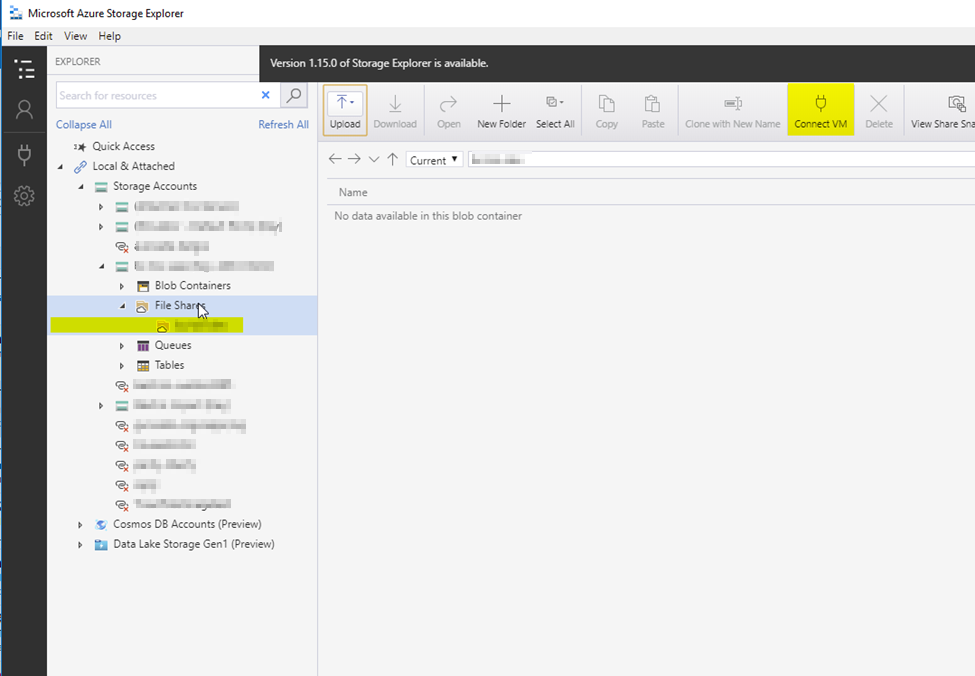
To create a file share, go to your storage account in the left pane, select the File shares node directly below it, and right-click to open the context menu that lets you create a file share.
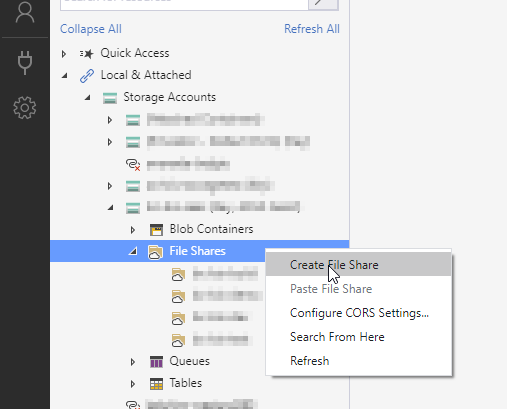
Create folders as needed within your newly created file share.
Configure the Azure file reader in Business Central using the following fields:
- Folder Name: The folder path to read from (see Step 6). Make sure the folders exist on the file share. The file share name itself is not part of the folder path.
- File filter: The file name. You can use a simple pattern with a wildcard (for example,
foo*.xml) to find any XML files starting with "foo". - Use Regex in File Filter: When enabled, you can use regular expressions in the File Filter field. Note that the
*character has a different meaning in regular expressions. This is a powerful option for advanced users only. - File share: Enter the file share name you created in Step 5.
- Storage key: Enter the access key from Step 1.
- Storage account: Enter the storage account name from Step 1.
Apply the same steps to the AzFileWriter endpoint.
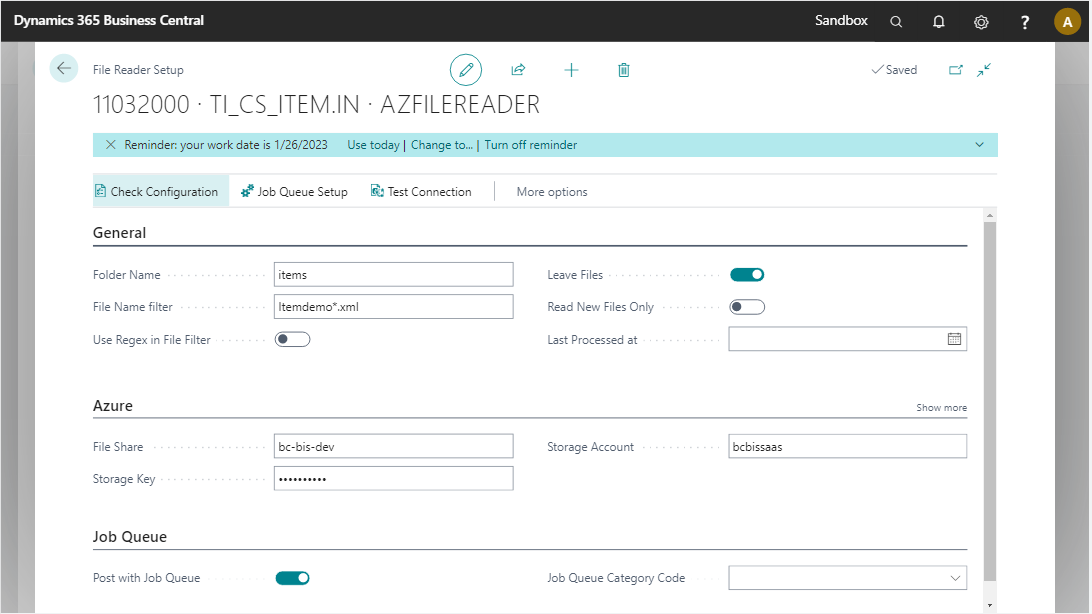
The Check Configuration button lets you verify whether the system can connect to your Azure Storage Account.
Additional information
Selecting Connect VM shows the command to mount this storage as a local folder in Windows. This screen also shows the key, which you can copy to the Azure File Connector configuration page.
Job queue
The Azure File Reader can run with a separate job queue entry instead of the product job queue. This gives the flexibility of setting a different interval for when files need to be picked up.
| Field | Description |
|---|---|
| Process with Job Queue | Select this field to process the Azure File Reader endpoint using a separate job queue. |
| Job Queue Category Code | Specifies the code of the job queue category to which the job queue entry belongs. Select the field to choose a code from the list. When a job queue category code is defined, messages for this connection run in a serial manner. |