
Business Integration Solutions documentation
Walkthrough: Sales Quote
About this walkthrough
This walkthrough provides an overview of how to send a sales quote notification.
A sales quote shows a prospective buyer what costs would be involved for the work they would like done. Many businesses provide services that cannot have an upfront price, as costs can vary depending on materials and manpower. These companies provide the potential customer with a quote that helps the prospective buyer choose which company and services to use.
Prerequisites
| Template | Description | Default report |
|---|---|---|
| NM_SALES.QUOTE | NM Template: Sales Quote | Sales - Quote (1304) |
Story
This connection uses the following pipeline elements:
- A Code Event triggers the pipeline. On the Sales Quote page (page 41), add a new button with a few lines of code: see Code Event Setup. When a user selects this button, the Code Event detects it.
- The XML Generator activity creates an XML file based on an internal document.
- The Splitter activity creates one message for each sales quote.
- The XML Minifier activity cleans the message of empty nodes and blocks that are not mandatory.
- The message passes through the XMLSchemaValidator, which verifies that the XML message respects the internal document structure.
- The Header Mapper activity adds the headers to the message body, filling in the recipients and email subject.
- The XML to HTML Translator activity creates an HTML email message based on your branding templates. You can also configure an HTML body manually.
- The Attachment Generator activity adds attachments to the email message based on standard Microsoft Business Central report functionality.
- The Email Writer endpoint sends the email.
- The internal document NM_SALESQUOTE contains all the information needed to configure the XML Generator activity, the Splitter activity, the Header Mapper activity, and the XML to HTML Translator activity. Adding other fields to this document lets you define a personalized email message.

Task
Setup
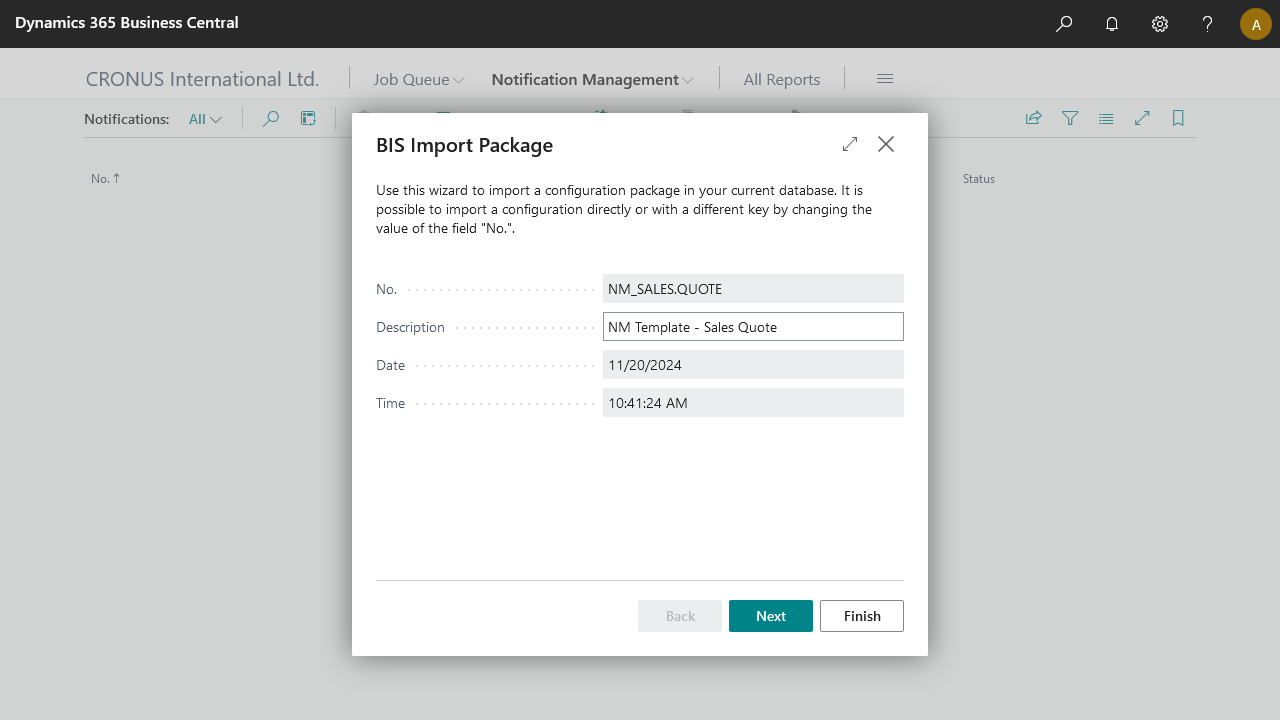
Import the NM_SALES.QUOTE.zip configuration package, or use the BIS template if available.
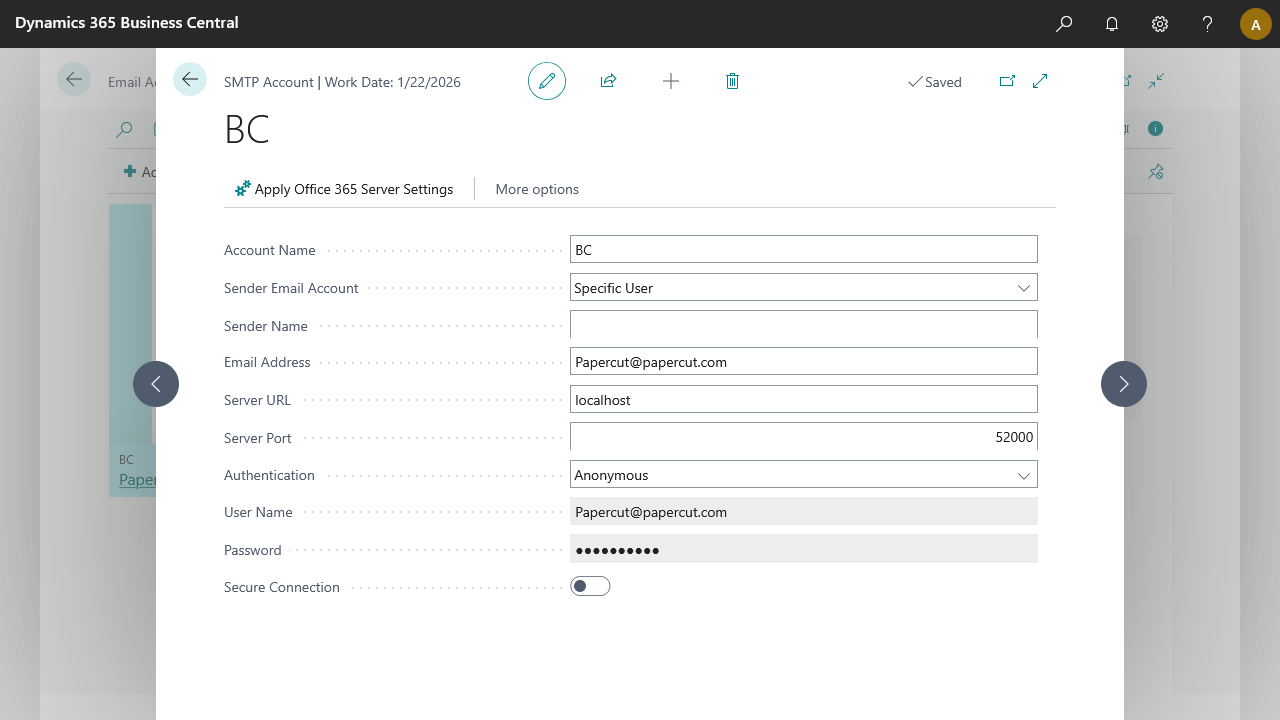
Add a new email account in Email Accounts, then select SMTP Account to send notifications via the Papercut SMTP server.
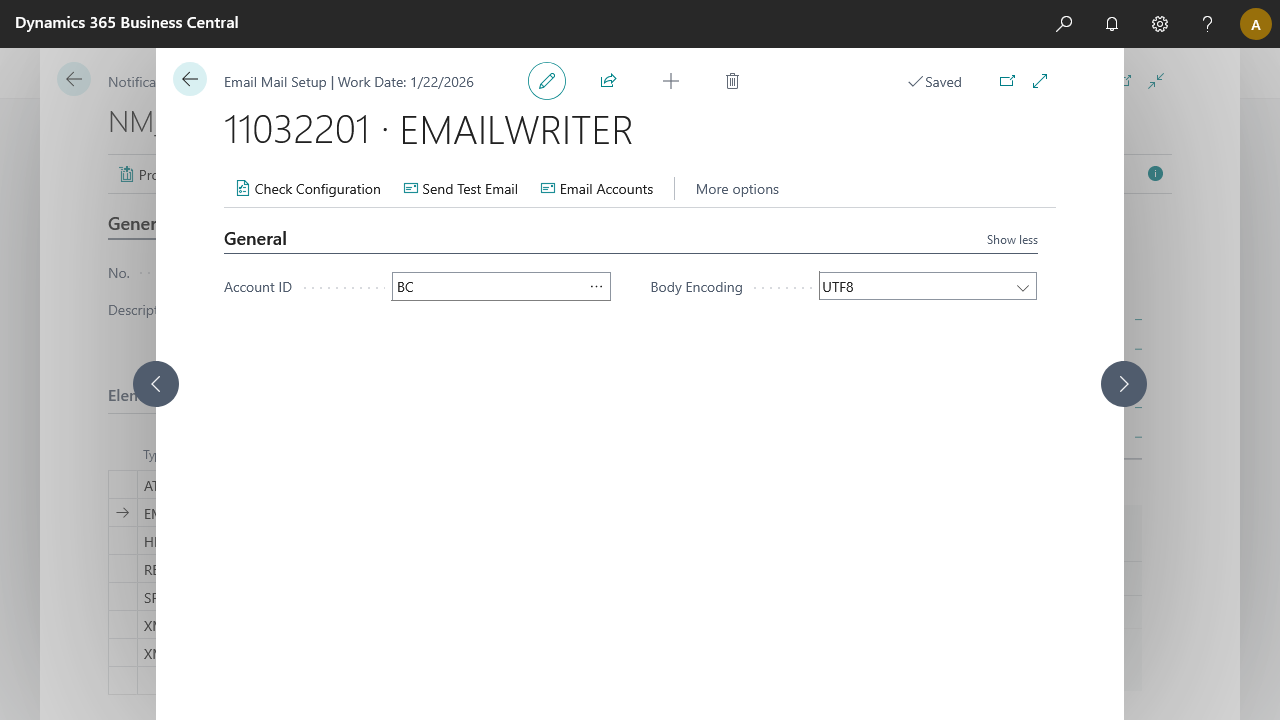
On the notification page, edit the EMAILWRITER and add the Account ID created in the previous step. Run the configuration once.
Process
- Open the Sales Quotes page.
- Create a new sales quote for customer 20000 Selangorian Ltd.
- Select the Code Event button on the page (Send Notification).
Result
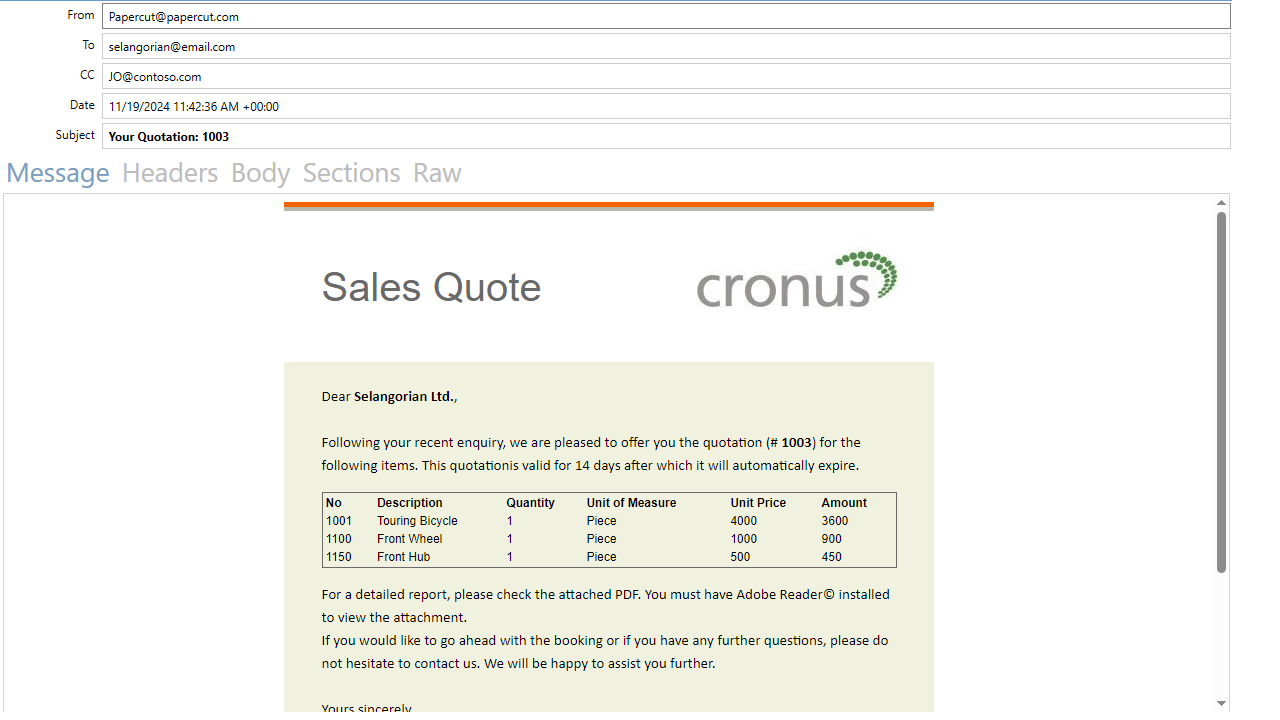
The mail sends to all recipients. Using Papercut, the mail is captured in the demo environment, showing a preview of the HTML mail body and a PDF attachment of the Sales - Quote report.
For a brief guide, see Papercut SMTP setup.